How to add headings and snippets to a template
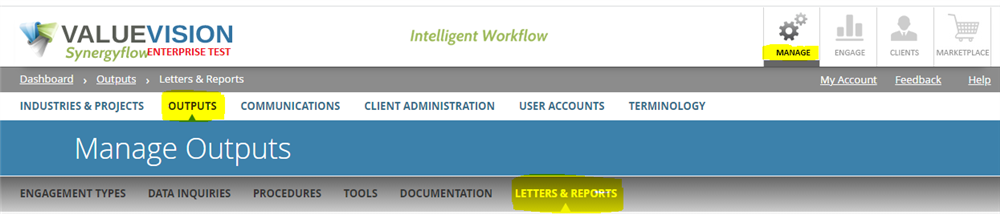
- Go to Manage > Outputs > Letters & Reports
- Click on "Add Template"

- Click on Add Heading (Headings are used to title the various sections of a report)
- Enter a Heading Name
- Enter Heading Level (each level includes predesignated formatting)
- Click on Add Snippet and choose from available snippets in the drop-down menu (Note: only snippets you have mapped to that specific engagement type will be available)
- Select the snippet to be added. You may preview the snippet content by selecting Open from the menu to the right of the snippet (from within the same page). Add additional snippets under each heading, as applicable. You may rearrange the order that headings appear within the letter, or the order snippets appear under a specific heading, by simply dragging and dropping to the desired positions. (Note: Snippets may only be reordered within their respective headings)
- Click Save & Close
Related Articles
No Related Articles.
Comments:
No comments for this article.
You need to be logged in to write comments.