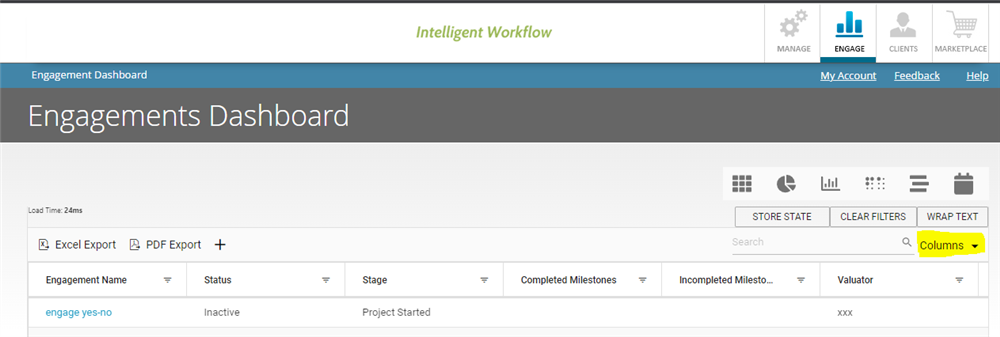
- Click on 'Engage' icon which will take user to engage dashboard.
- In the engage dashboard, the user can select engagement on the basis of following filters -
- Engagement Name
- Status
- Stage
- Completed Milestones
- Incompleted Milestones
- Valuator
- Client engagement number
- Percentage completed
- Procedure percentage completed
- Industry
- Project
- Internal notes
- Total fees
- There are other filters as well, which the user can use by clicking on 'Columns' section in right hand side of the page.
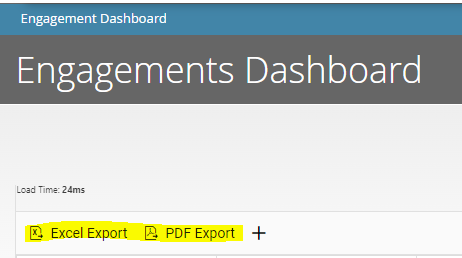
- Dashboard also gives user the option to export list of engagements in word or PDF format.
- User can also store state of the engage dashboard by clicking on 'Store State' option. If the user clicks on 'Store state' option, the user will find engage dashboard in same state (same filters or sort order applied) even if he logs out of the account and logs in again through different browser or device.

Comments:
No comments for this article.
You need to be logged in to write comments.