Adding or Editing a Snippet
- Go to Manage > Outputs > Letters & Reports.
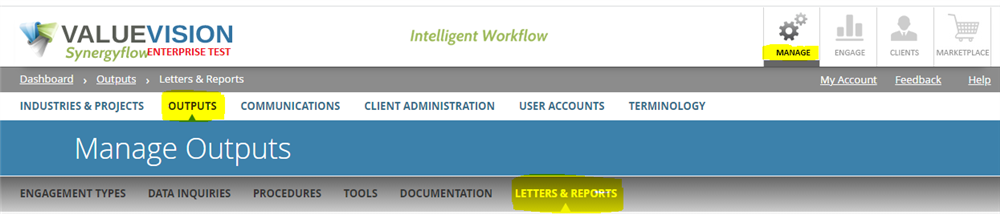
- Click on Manage Snippets in the left navigation menu.

- To add a snippet, click on '+' sign.

- Create a descriptive name (to allow someone to locate and identify a snippet during a search).
- Select which Industries and Project Types the snippet is to be mapped to.
- Enter your “boilerplate” language for the new snippet. It is important to note here that user shall avoid using '<>' mark while creating/ editing a snippet because any content qouted in '<>' is considered as HTML code by the system. Alternatively, user can use symbol '[]', if required.
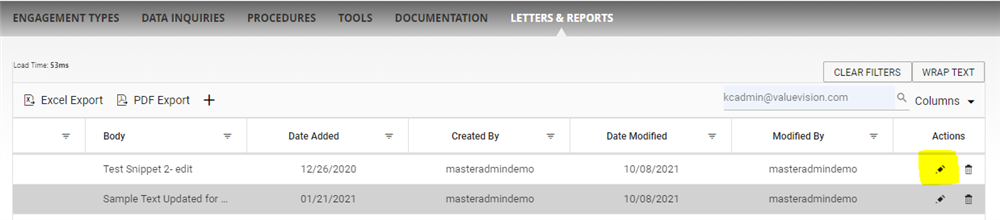
- To edit snippet, click on the 'pencil' sign appearing against the snippet you want to edit.
- Make changes, as required.
Related Articles
No Related Articles.
Comments:
No comments for this article.
You need to be logged in to write comments.