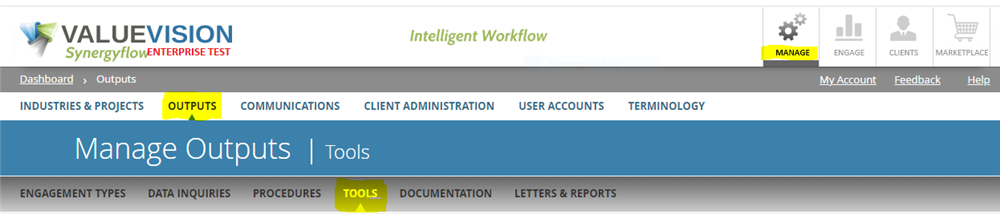
- Go to Manage > Outputs > Tools
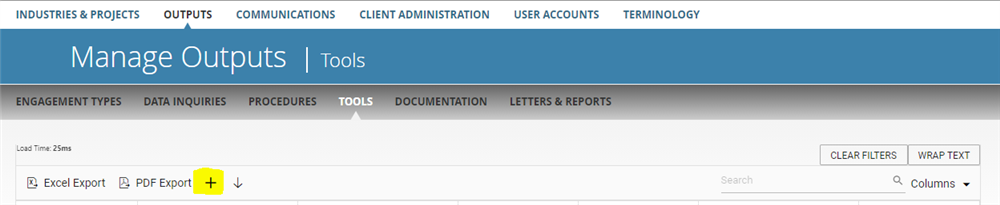
- Click on the "+" symbol to Add a New Tool
- Enter the Tool Name (should be short, to allow someone to locate and identify the tool)
- Enter the Tool Description (it could be useful to describe details of the tool, how it might be employed, or how it may be different from similar tools in your tools list).
- Click on Attach Files (if applicable) to add a file(s) to the specific tool.
- Enter the Classification (Defined below under Notes)*
- Enter the URL (website address) of the tool (if applicable, i.e. database access website); Note that it is best practice to go to the actual tool website page, then cut/paste the URL from the address bar into this field (rather than typing the URL into the field).
- Enter the Data Type (Data type explains the type of the tool, is it a link or a report or an excel file?)
- Enter Source Contact Info (optional, i.e. who is responsible for providing the tool)
- Enter Cost (optional)
- Enter individual Keywords (optional) to make locating the tool during a search more convenient
- Enter Source (i.e. XYZ Company, if the tool is a report issued by the XYZ company. The name of the report would likely be the Tool Name)
- Enter Geography (optional if the tool is relevant to a geographic location)
- Enter the Published Date (optional; if the tool may be time-sensitive, or may indicate a “last updated” date)
- Enter any Comments about the tool (optional, i.e. might include information about the login/password for a subscription-based tool)
- Click Save & Close
*Note : Classifications are defined as:
-
Free with no licensing restrictions
-
Public domain or open-source, freely usable without attribution or limitations.
-
-
Free with licensing restrictions
-
Still free, but must comply with terms (e.g., attribution, non-commercial use only).
-
-
Private – Not Purchased
-
Available from third parties, but not yet purchased by your org.
-
-
Private – Purchased
-
Paid for and available to your org, but possibly restricted by seats or roles.
-
-
Private – Not Subscribed
-
Subscription-based but not currently licensed/active.
-
-
Private – Subscribed
-
Active subscription; fully accessible under current terms.
-
-
Proprietary
-
Developed in-house or fully owned IP. No external access, licensing, or restrictions.
-
Comments:
No comments for this article.
You need to be logged in to write comments.