Add new client to a company
- Go to Manage > Client Administration.

- Click on name of the company for which you want to add new client account.
- Click on 'Add' icon appearing above the list of client accounts.
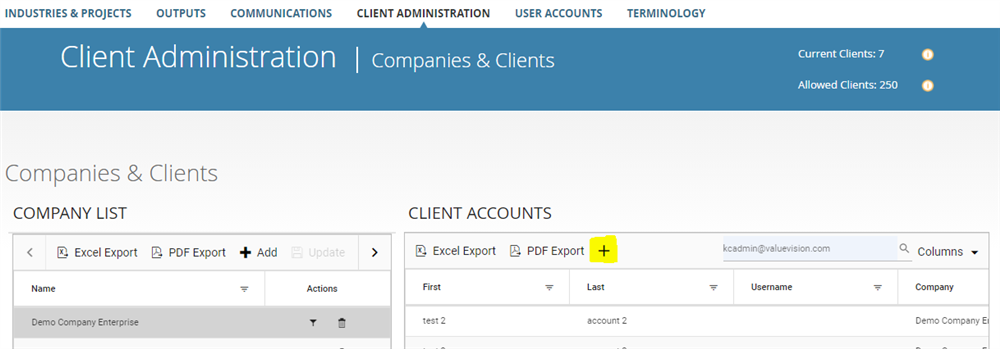
- Enter client's information:
- First name
- Last name
- Job title (optional)
- Company name (You need to select the company's name from the drop-down menu. If the company name is not in the drop-down list, then you need to click on 'Ad company', enter the name of new company and click on 'Save.')
- E-mail address
- Telephone number (optional)
- Address (optional)
- City (optional)
- State/Province (optional)
- Zip/Postal code (optional)
- Country (optional)
- Tick mark on 'Send invitation email immediately after creating the account.', if you want to send the invitation mail to the client after creating the account.
Related Articles
No Related Articles.
Comments:
No comments for this article.
You need to be logged in to write comments.