Go to Manage > Client Administration
- Click on "Add New Client".
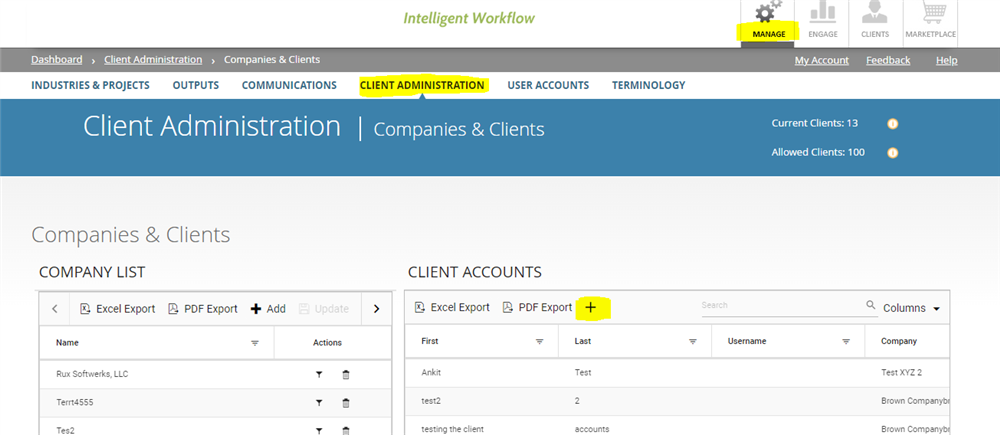
- Enter Client Name, Contact Information, Linked Company Name (Note: To enable linking to their company name, the client’s Company must already exist in your Company List prior to creating the new client record).
- If you choose the option to send an automated email invite to the new client user, the client will receive an email with a link to register, which will be valid for 7 days. If the client does not register within the allotted time frame, it will be necessary to go back into the client record and click on the “Resend Invite” button at the bottom of the page.
- The sender will receive confirmation emails when the invite is sent, and when the new user has successfully registered.
Comments:
No comments for this article.
You need to be logged in to write comments.